Quick start: your first move
From install to a recorded run in Activity, one S3 bucket from one account to another, in about ten minutes.
Note. The Douklar source repository is not public yet. This page follows the install for those who have a copy.
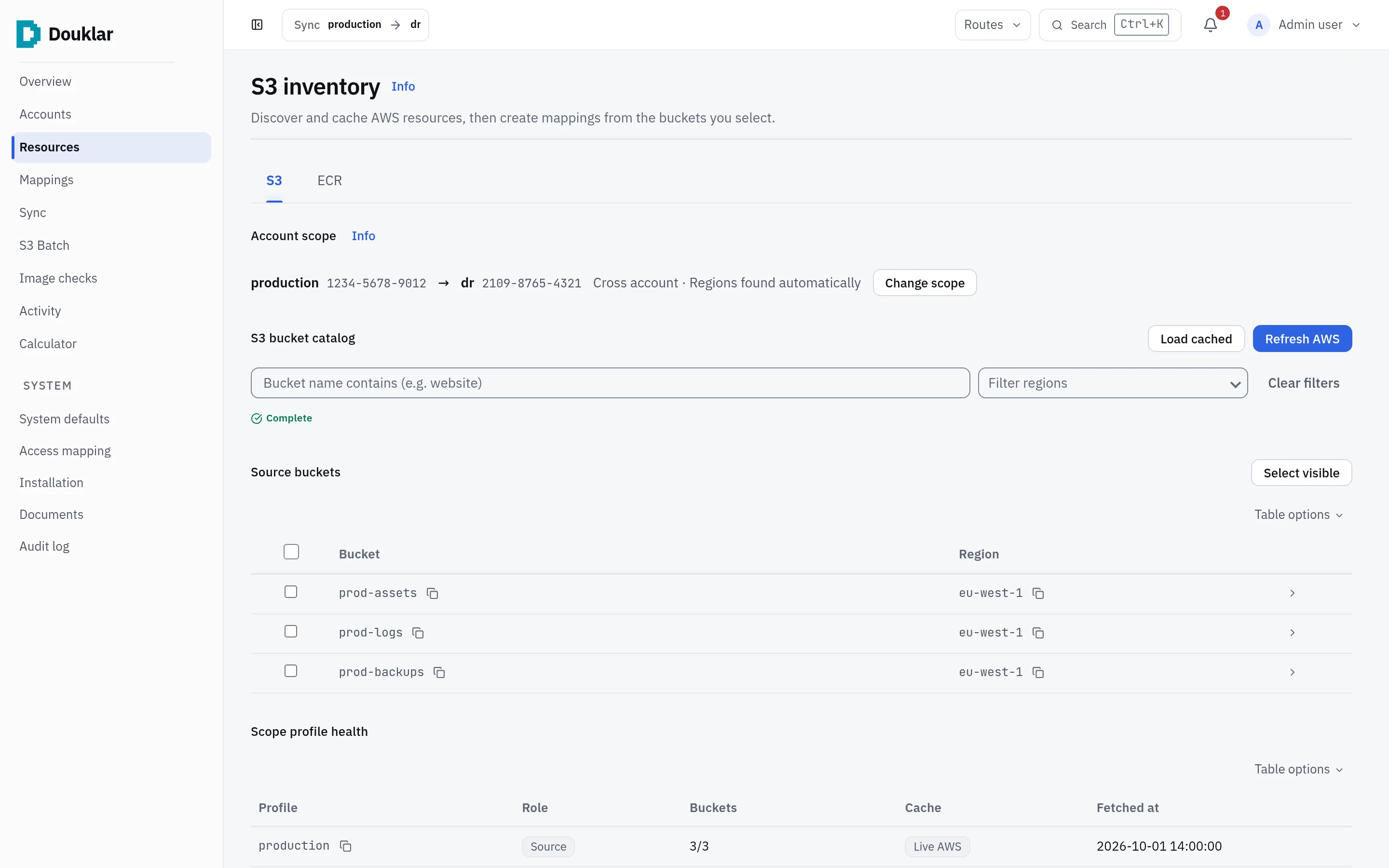
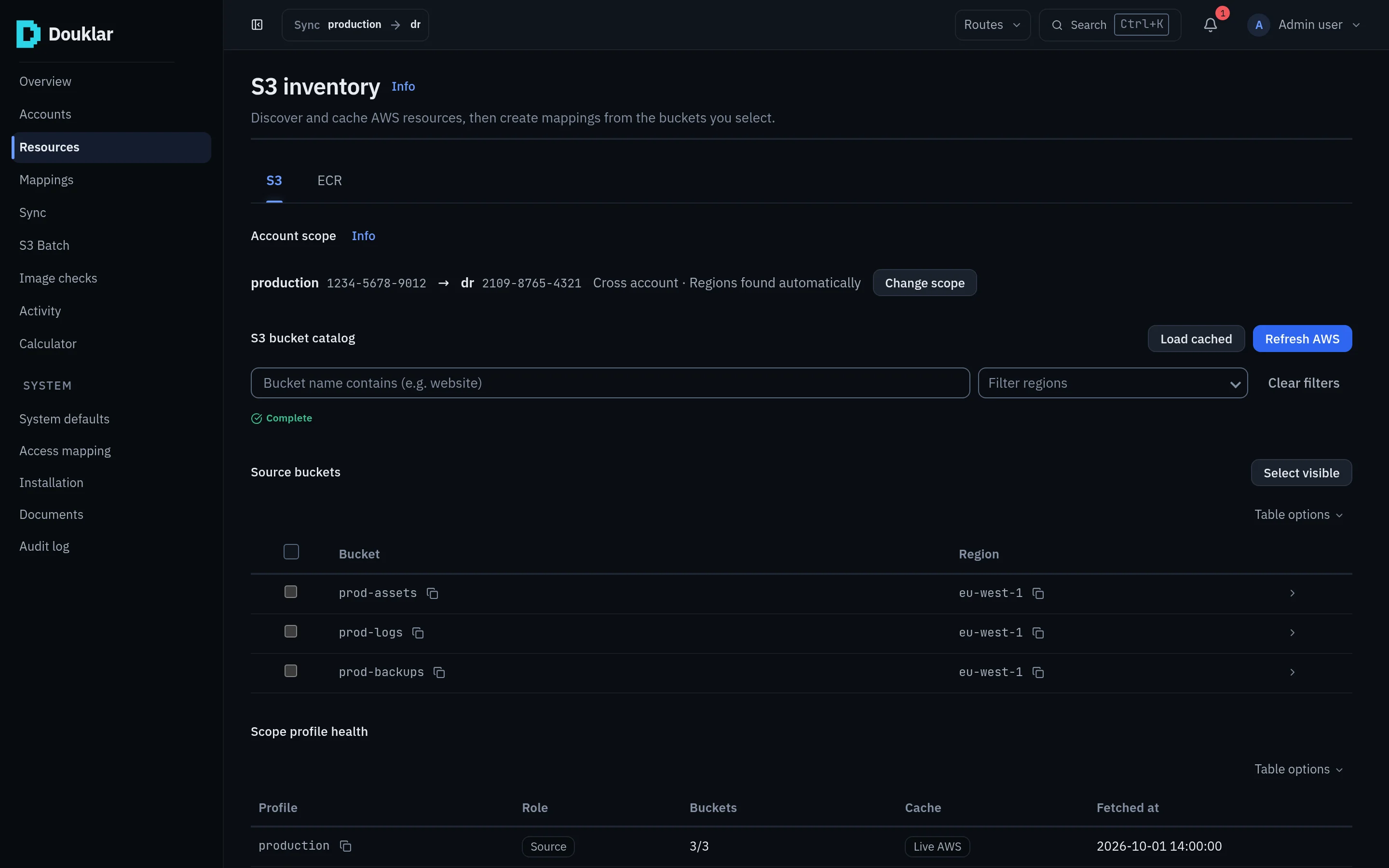
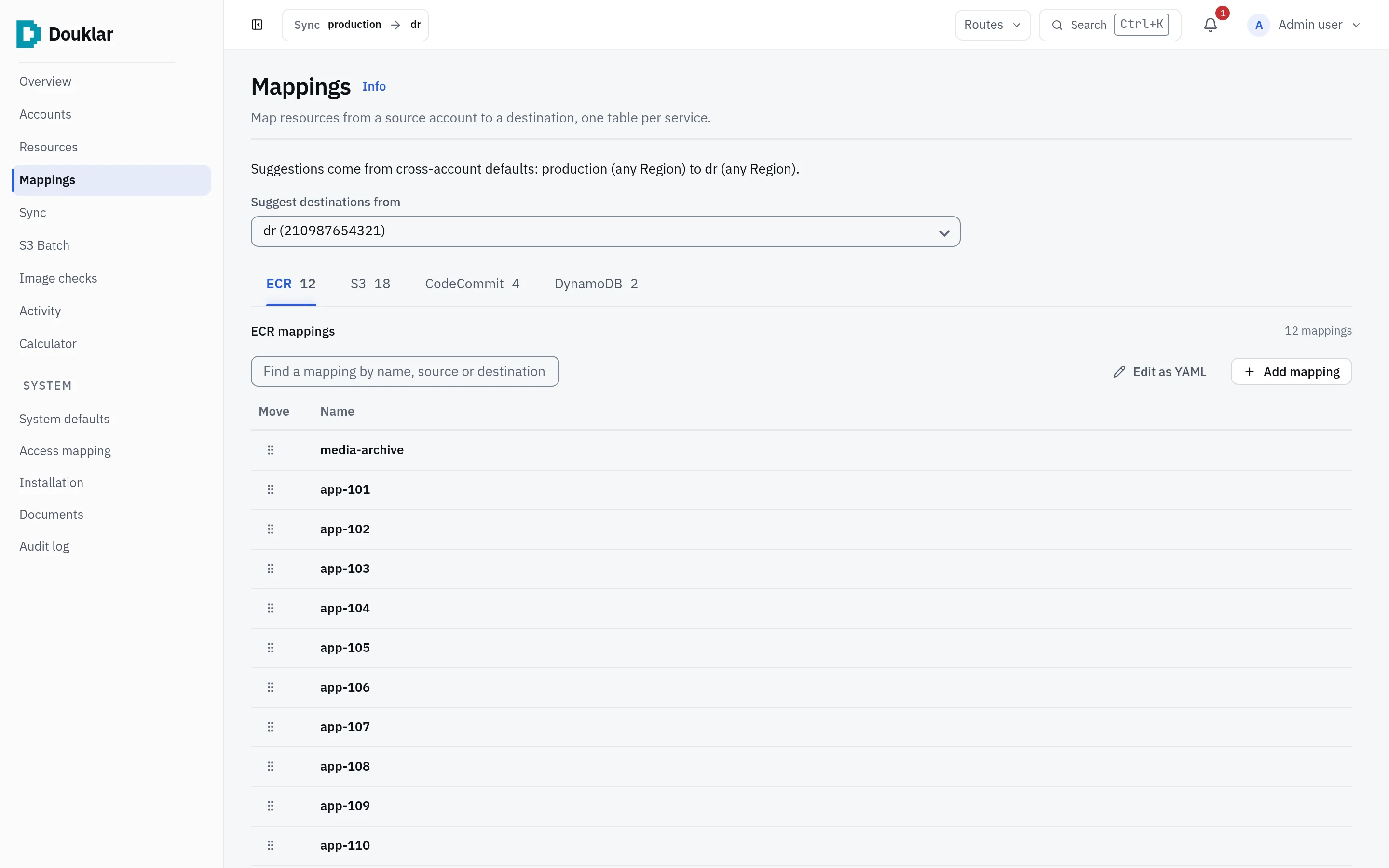
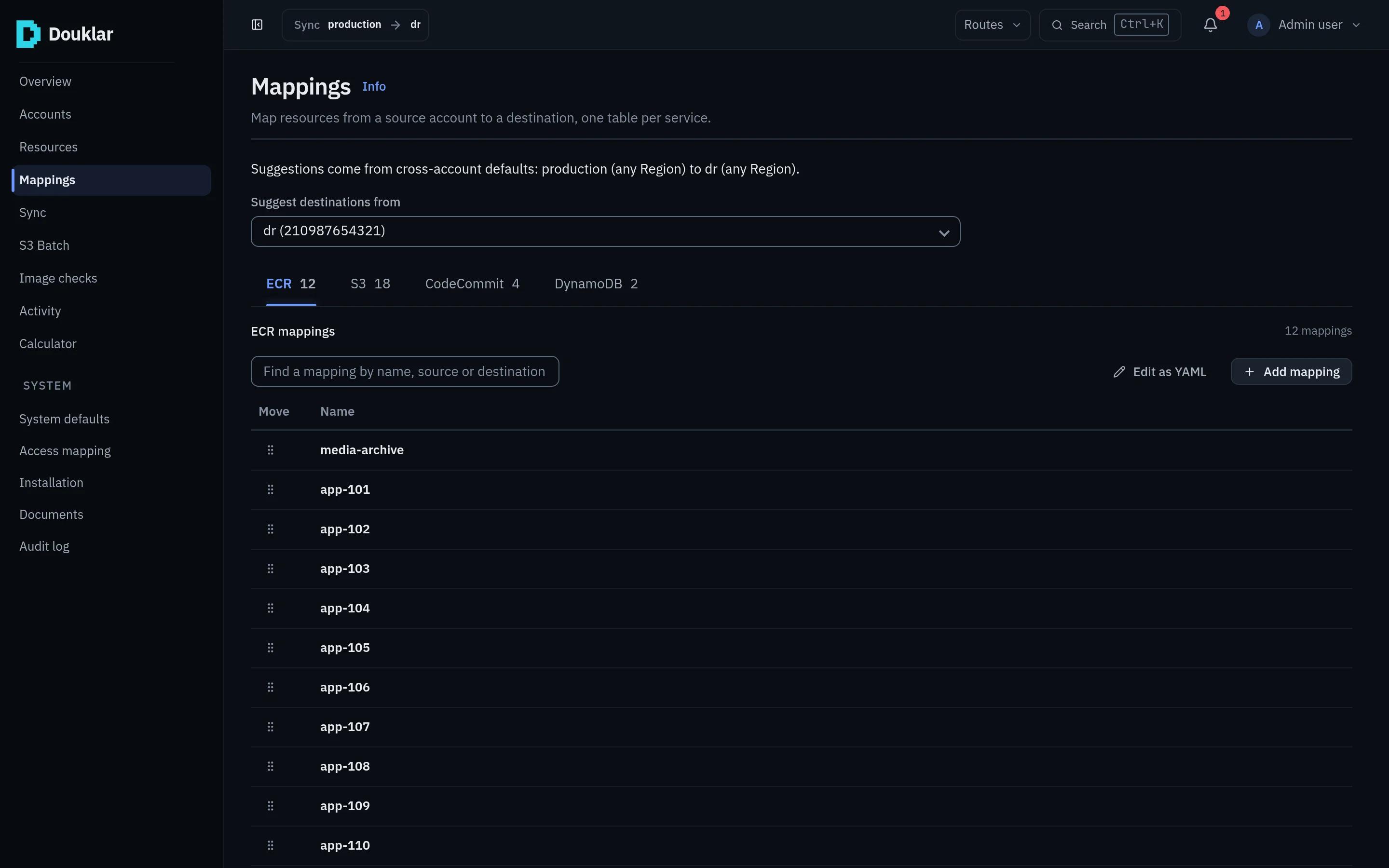
This page moves one S3 bucket from a source account to a destination account with the web console. Each step links the page that covers it in full. The screens below are the real console with sample accounts and buckets.
What you need
- A Linux x86_64 host with Docker and Docker Compose.
- A Chromium-based browser at desktop width.
- Two AWS accounts you can reach, each with access keys or an IAM Identity Center (SSO) session, and a destination bucket that already exists.
1. Install and open the console
From the repository root:
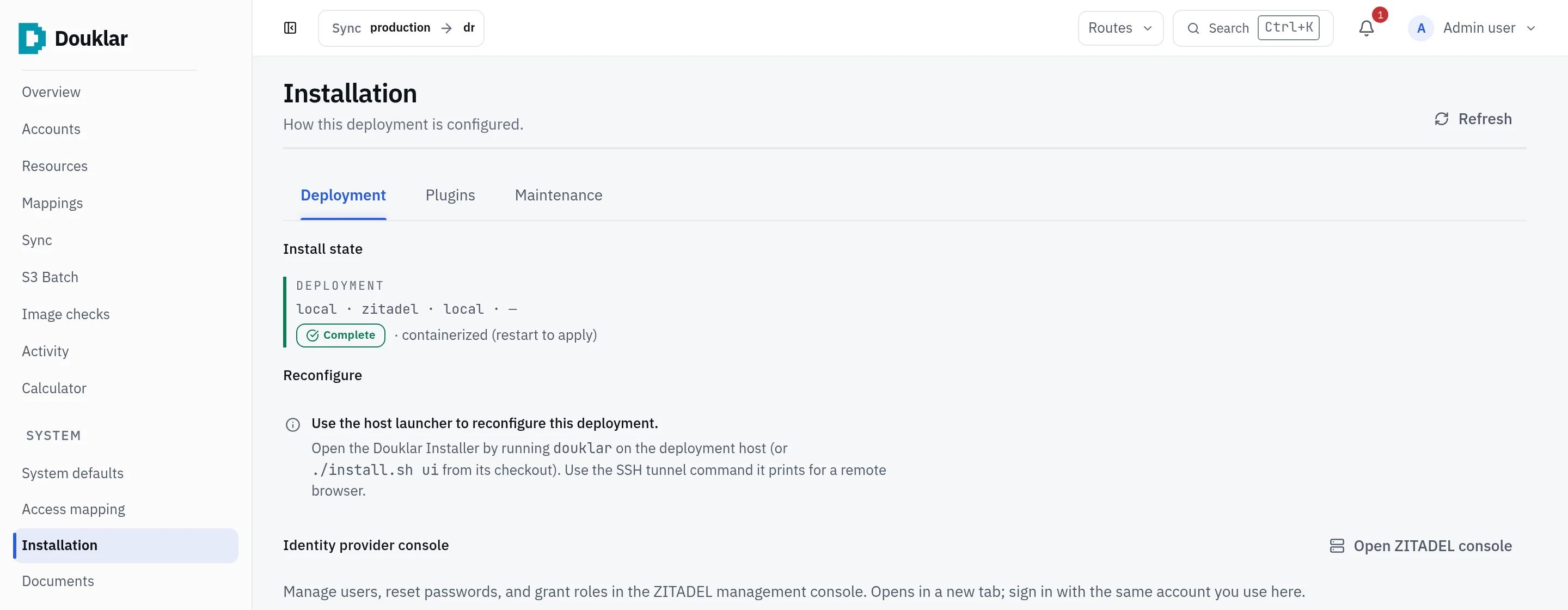
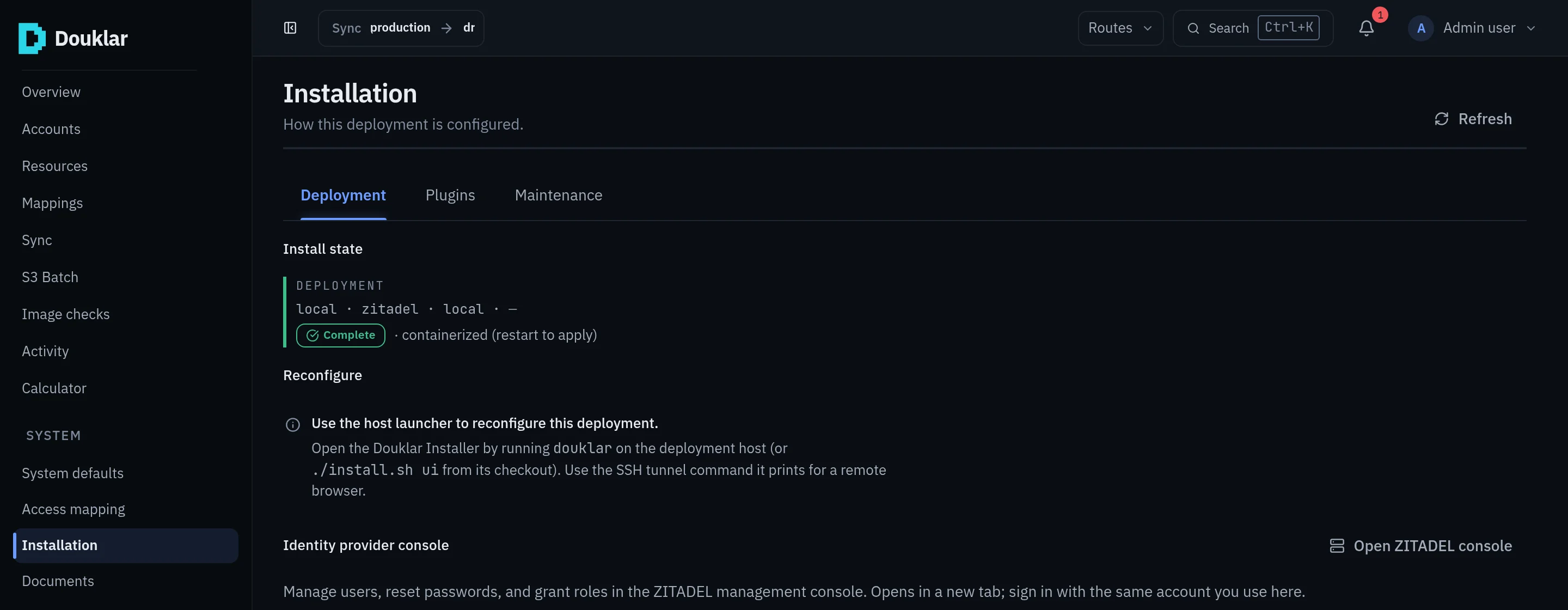
./install.sh localWhen it finishes, open http://127.0.0.1:5566. The command checks Docker,
writes .env, starts PostgreSQL, the bundled ZITADEL sign-in, the backend and
the sync worker, and prints the local sign-in details.
Install locally lists the other ways to install.
2. Sign in
Sign in on the bundled ZITADEL login with the details the install printed.
An install with AUTH_MODE=none skips this screen and signs you in as the one
local admin; that mode is for a single person on one machine.
3. Add the two accounts
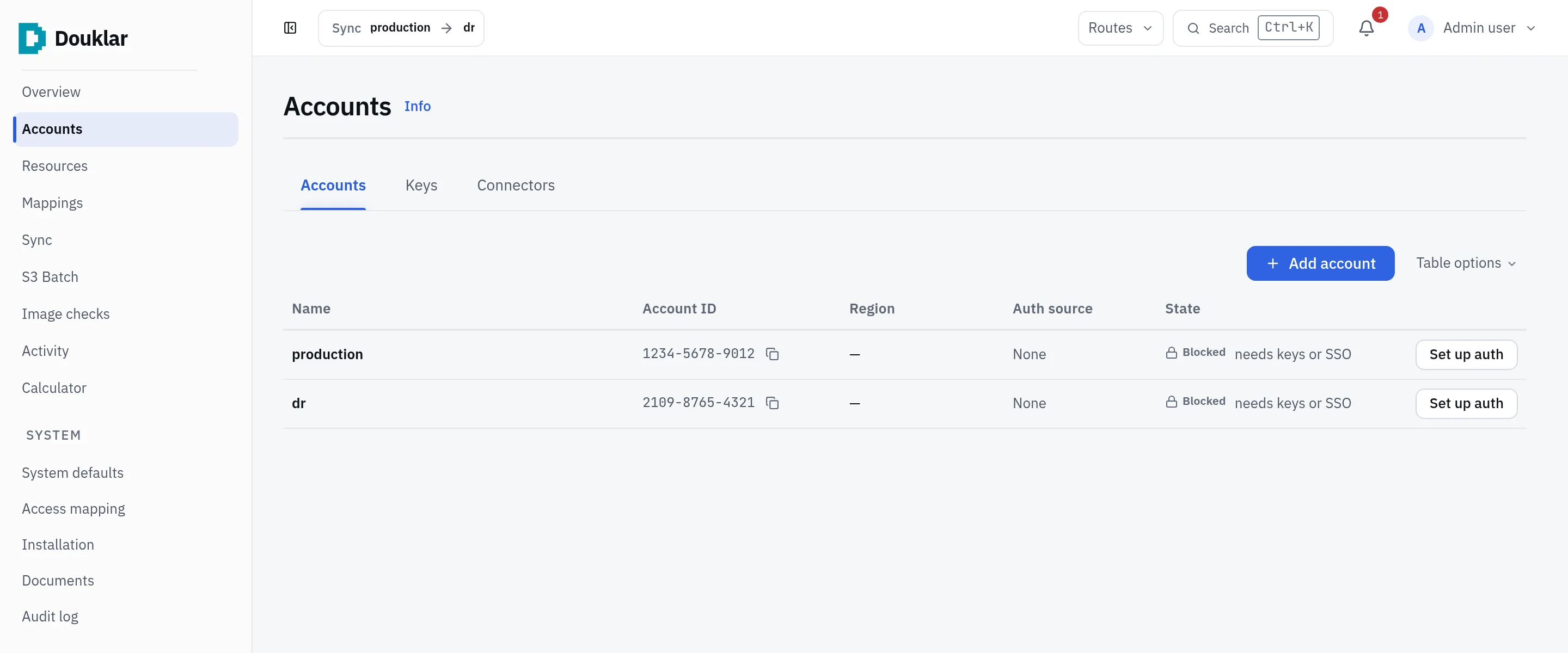
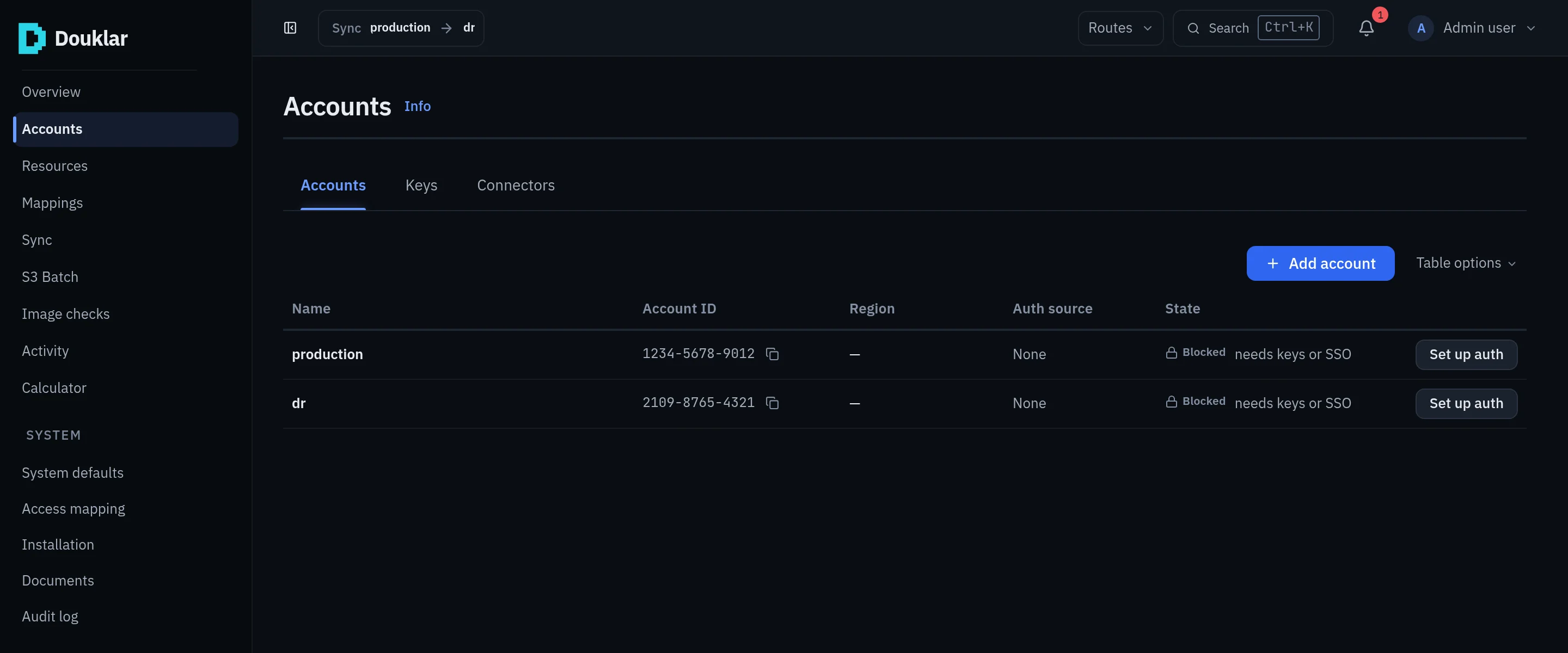
Open Accounts and press Add account twice: one profile for the source account, one for the destination. Each profile then needs credentials: press Set up auth and add access keys, or sign in to IAM Identity Center from the console. Douklar checks each account with AWS STS.
More: Accounts and credentials.
4. Find the bucket
Open Resources. Choose the source and destination profiles under Account scope, then press Refresh AWS to list the source account's buckets. Douklar keeps the list, so the next visit can use Load cached.
5. Map it
Tick the bucket and create a mapping from it. Open Mappings to check the pair: source bucket, destination bucket (the name may differ) and the app the mapping belongs to.
More: Discovery and mappings.
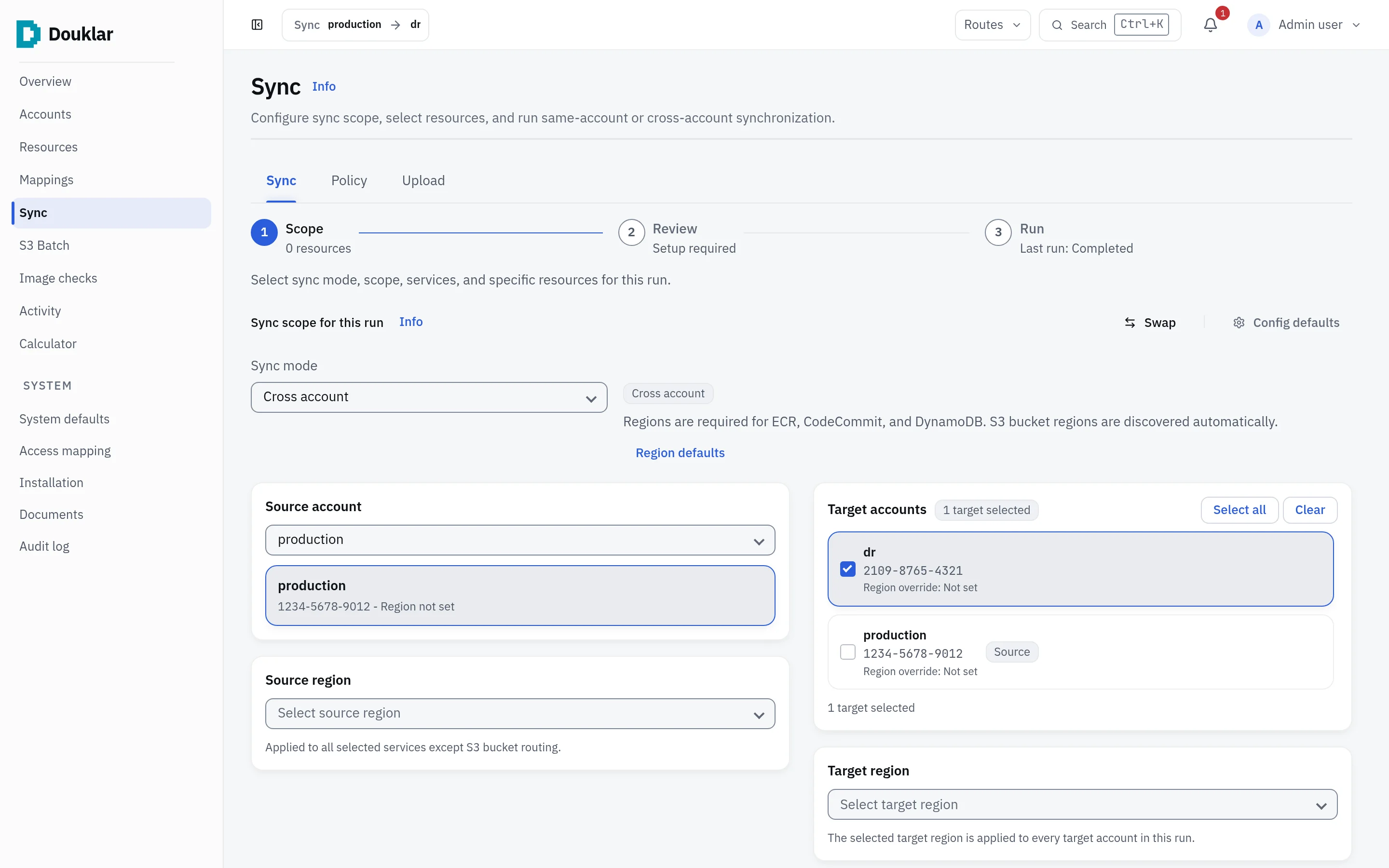
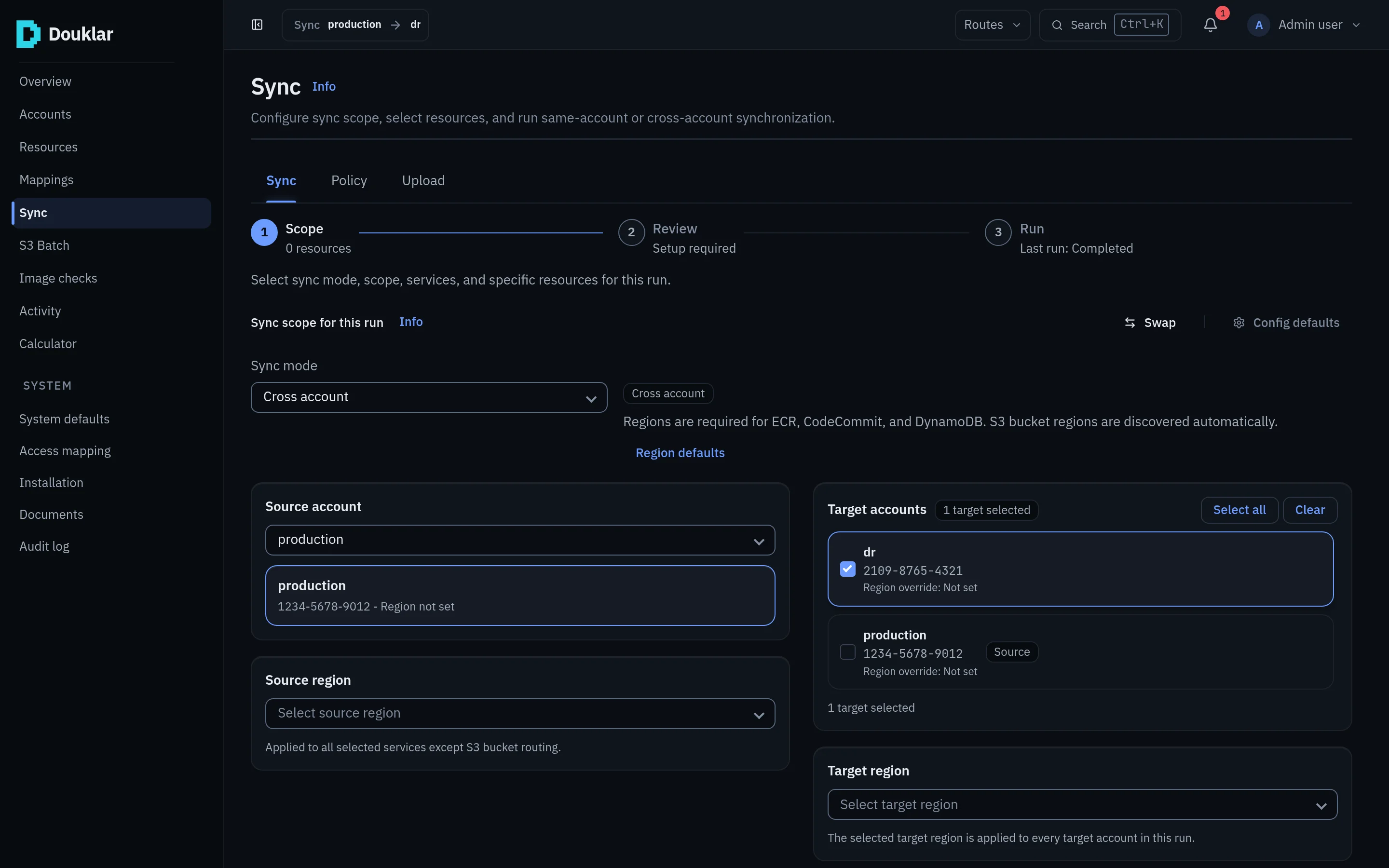
6. Check, review, run
Open Sync and choose the scope. Preflight runs first and reads both sides: whether the destination exists, how the encryption keys compare, whether the credentials last through the run. Problems show here, with the exact statement for the other account's admin when a permission is missing.
Review lists what will be written. Press Run to queue one run; the sync worker picks it up and the logs stream live.
More: Preflight and Review, Running a sync.
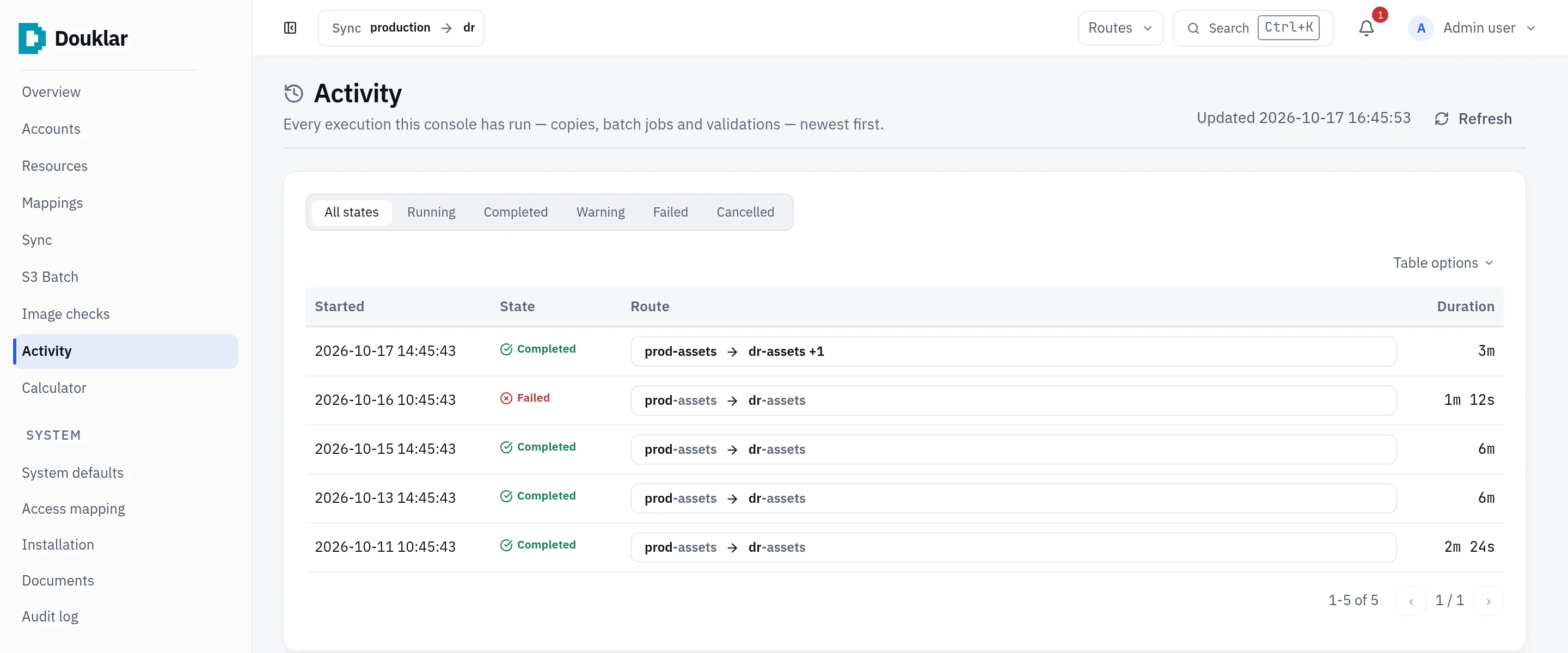
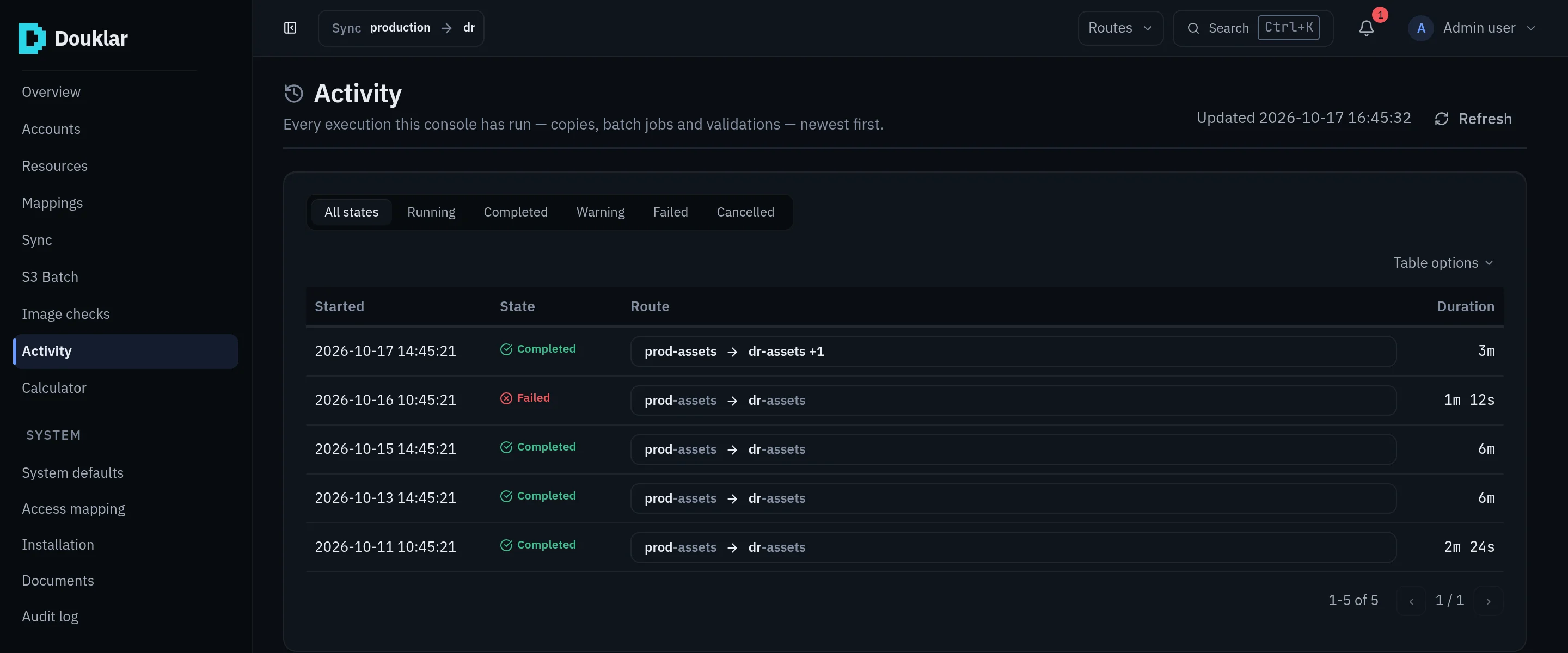
7. Read the record
Open Activity. The run is listed with its route, outcome and duration. Its record holds the counts per service (attempted, succeeded, skipped, failed), the logs and the outcome of each object. Retry failed repeats only what failed.
More: Activity and evidence.
The same move from a terminal
With a config file that holds the mapping under an app named my-app:
douklar sync plan --service s3 --app my-app
douklar sync run --service s3 --app my-appsync plan prints the plan and writes nothing. More:
The douklar CLI.
Next
- Hand a change to the other account's admin when the source account is not yours.
- S3 Batch Operations for large buckets.
- Troubleshooting if a step stops.